
How to Make a Professional Video with a Free AI Generator: A Step-by-Step Guide
A practical guide to creating videos using free AI generators. What you'll need, how to write prompts, steps from idea to export, common mistakes and their signs.
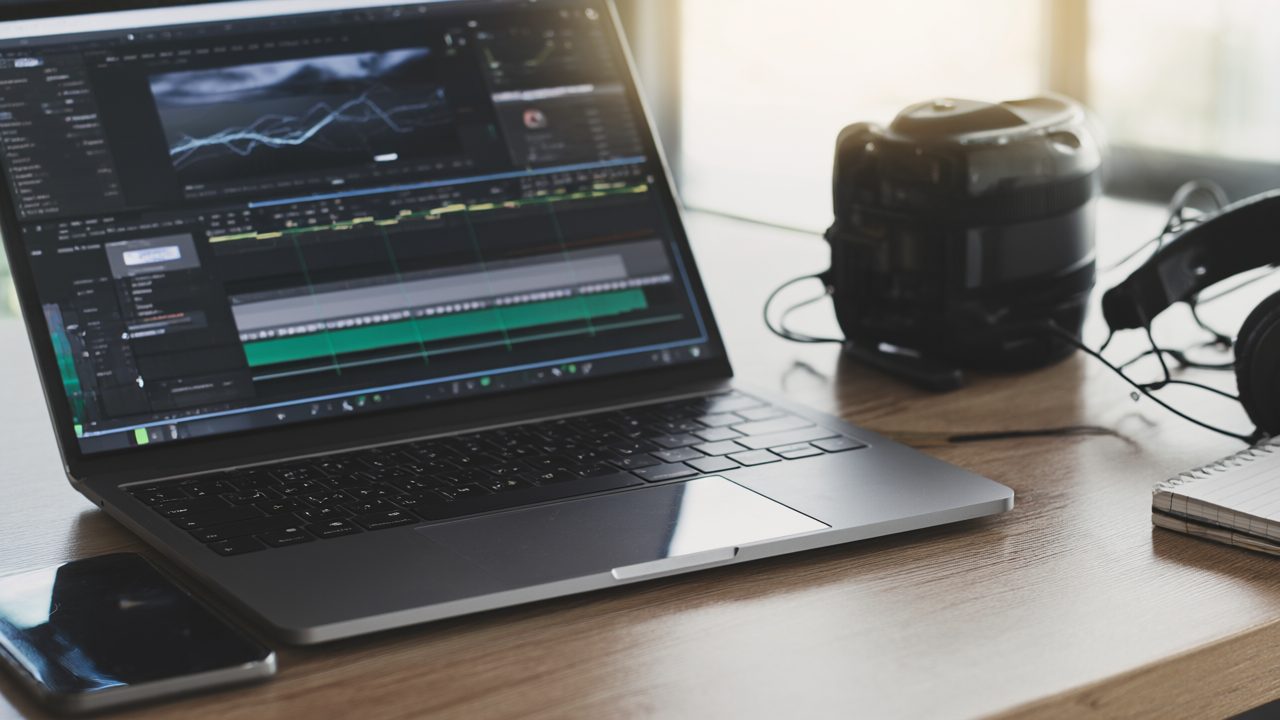
What you'll need
- A free account with one of the AI video generators (e.g., Runway ML, Pika, Kaiber, or similar).
- A script text or at least a set of key phrases.
- Images or video clips if you plan to animate static content.
- A computer with a browser and a stable internet connection.
- A basic understanding of what a prompt is (a text description of the task for the AI).
- A social media or video platform account for publishing (if needed).
There is no data on specific limits of free plans — check the terms on the website of the chosen service. Typically, free plans limit clip length, resolution, number of generations, add a watermark, or prohibit commercial use.
Step 1. Choose a generator and sign up
Go to the service's website and create a free account. Confirm your email. In your account dashboard, find the video generation section (usually a "Create" or "Generate" button).
Don't buy a subscription right away. First, check whether the free features are sufficient for your task.
Step 2. Formulate a prompt
A prompt is a text description of what should be in the video. The more specific, the more predictable the result. Specify the object, action, style, lighting, camera angle.
Example prompt for generating a clip:
A close-up of a ceramic coffee cup on a wooden table, steam rising, soft morning light from the left, shallow depth of field, realistic style, 5 seconds
Don't write abstractions like "a beautiful video about business." Break it down into scenes: "office, people working at laptops, pan from left to right, daylight." If the service supports Russian, you can write in Russian, but many models understand English better.
Step 3. Generate the first clip
Paste the prompt into the input field. Select the duration if there is a choice (e.g., 3–5 seconds). Click the generate button. Wait for processing — this can take from a few seconds to several minutes.
Check the result: does it match the description? If not, adjust the prompt and repeat. Don't waste all your free generations on the same request.

Step 4. Assemble several scenes
One clip is not yet a video. Generate 3–5 short fragments that together tell a story. For example: problem, solution, result. Generate each fragment separately with its own prompt.
Download the finished clips in an available format (usually MP4). Pay attention to the watermark — it is often present on free plans.
Step 5. Edit the video
Use any free video editor: CapCut, DaVinci Resolve, Clipchamp, or the service's built-in editor. Import the clips, arrange them in order, trim the excess.
Add titles if needed. For this, the editor has text layers. Enter the title and captions. Check that the text does not overlap important details.
Step 6. Add sound
Without sound, a video looks sloppy. In the same editor, add background music (free libraries are available in CapCut, YouTube Audio Library) or voiceover. If you record voice, use a microphone — even a simple headset mic is better than the built-in laptop one.
Make sure the music does not drown out the speech. Volume levels are adjusted in the editor.
Step 7. Optimize for the platform
If you publish on social media, choose the correct aspect ratio: 9:16 for vertical videos (TikTok, Reels, Shorts), 16:9 for YouTube. In the editor, this is done during export or in the project settings.
Add subtitles — they can be generated automatically in the editor or in a separate service. Subtitles increase retention, especially when viewing without sound.
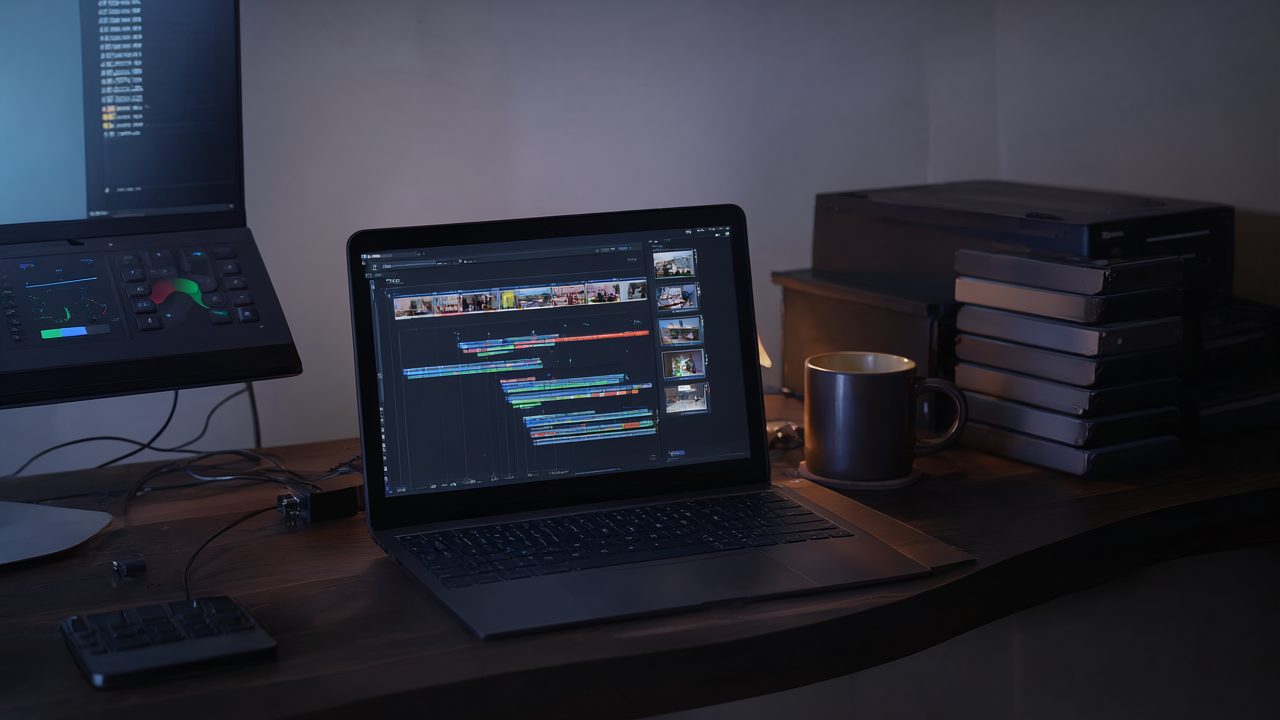
Step 8. Export and publish
Choose MP4 format, resolution at least 1080p if available. On free plans, resolution may be limited. Click "Export" and wait for rendering.
Check the finished file: no black frames, sound not cut off, titles readable. Then upload to the platform.
Common mistakes and how to recognize them
1. Too general a prompt. The result does not match expectations: wrong object, wrong style. A sign — you have to generate many times without improvement. Solution: add specifics (color, angle, action).
2. Ignoring the limitations of the free plan. Suddenly generations run out or a watermark appears on the video. Check the terms in advance.
3. Too long clips. Free services often limit length (e.g., 3–5 seconds). If generation stops or gives an error, reduce the duration in the settings.
4. Lack of editing. Simply glued clips without transitions and titles look raw. Add at least simple transitions and a title.
5. Poor sound. Music louder than speech or complete absence of sound. Check on your phone and in headphones.
6. Wrong aspect ratio. Video is stretched or cropped on the platform. Always check the platform's requirements before export.
7. Copyright infringement. Using someone else's music or images without a license. On free plans, commercial use may be prohibited — read the terms.
If after generation the video does not look as intended, go back to the prompt step. Don't try to fix everything at the editing stage — AI generation is cheaper and faster than manual correction.
There is no data on specific prices and limits — rely on the information on the services' websites.