
How to Run a Neural Network Locally Without an NPU: A Step-by-Step Guide
Instructions for a laptop without a neural processor: we check the hardware, install Ollama, run a model, and compare speed with an NPU. Based on the material from "Kod" dated 10/30/2026.
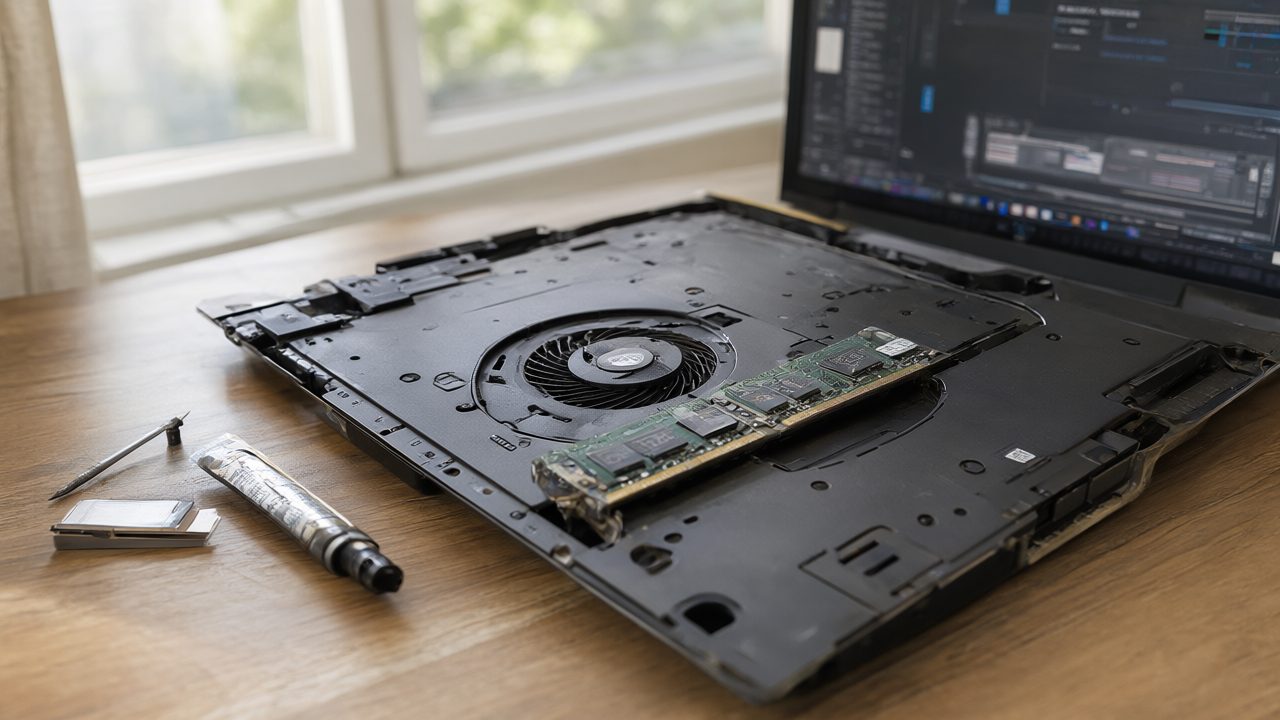
What You Will Need
- A laptop or PC with Windows, macOS, or Linux. An NPU is not required.
- At least 16 GB of RAM. For models with 7–8 billion parameters, 32 GB is better.
- Free disk space: from 10 GB for models.
- A stable internet connection for downloading models.
- Patience: the first launch may take time.
There is no data in the original source about Ollama's exact system requirements for each OS. Below are the general steps that work on most configurations.
Step 1. Check Whether You Have an NPU
An NPU (neural processing unit) is a block inside the processor for matrix operations. In Intel, AMD, and Qualcomm processors, it is located next to the compute cores and integrated graphics. For Apple, this is the Neural Engine (ANE).
To find out whether you have an NPU:
- Windows: open "Task Manager" → "Performance". If there is an "NPU" section, then the block is present. If there is no section, most likely the NPU is absent or the driver is not installed.
- macOS: Apple Silicon (M1 and newer) has a Neural Engine. You can check in "About This Mac" → "System Report" → "Hardware" → "Neural Engine".
- Linux: run
lspci | grep -i neuralorls /dev/accel*. If nothing is found, there is no NPU or it is not configured.
Important: even if an NPU is present, tools like Ollama or LM Studio as of October 2026 do not use it. They run on the graphics card (GPU) and central processing unit (CPU). Therefore, for local neural networks, the amount and bandwidth of memory are more important than the TOPS (trillions of operations per second) figure.
Step 2. Install Ollama
Ollama is a program for running large language models locally. Download the installer from the official website ollama.com and run it.
- Windows: run
OllamaSetup.exeand follow the instructions. - macOS: open the downloaded
.dmgand drag Ollama to "Applications". - Linux: run in the terminal:
bash
  curl -fsSL https://ollama.com/install.sh | sh
After installation, check that Ollama works:
ollama --version
The command should output the version number. If it gives a "command not found" error, restart the terminal or add the path to Ollama to the PATH variable.
Step 3. Download and Run the Model
Choose a model according to the amount of memory. Use the table as a guide:
- 3–4 billion parameters — from 8 GB of RAM.
- 7–8 billion parameters — from 16 GB of RAM.
- 13 billion parameters — from 32 GB of RAM.
Exact requirements depend on quantization (compression of model weights). There is no data on specific figures in the original source, so check as you go.
Run the model with the command:
ollama run llama3.2
Ollama will download the model itself and start the chat. If the model does not fit in memory, you will see a memory allocation error. Then choose a smaller model.
Check which models are already downloaded:
ollama list
Step 4. Run LM Studio (Alternative)
LM Studio is a graphical program for running models. Download it from lmstudio.ai, install it, and open it.
- In the "Search" tab, find a model, for example
Llama 3.2 3B Instruct. - Click "Download".
- Go to the "Chat" tab, select the model, and start a dialogue.
LM Studio also does not use an NPU as of October 2026. It runs via GPU and CPU.
Step 5. Measure Speed
Generation speed is measured in tokens per second. In Ollama, statistics are displayed after the model's response. In LM Studio, the speed is visible in the interface.
Compare two modes: with GPU and without. In Ollama, you can forcibly disable the GPU by setting the environment variable OLLAMA_NO_GPU=1 before launching. For example, in Linux:
OLLAMA_NO_GPU=1 ollama run llama3.2
In Windows via PowerShell:
$env:OLLAMA_NO_GPU=1; ollama run llama3.2
Record the speed in each mode. If the difference is small, perhaps the model is small and the bottleneck is not computation but memory.
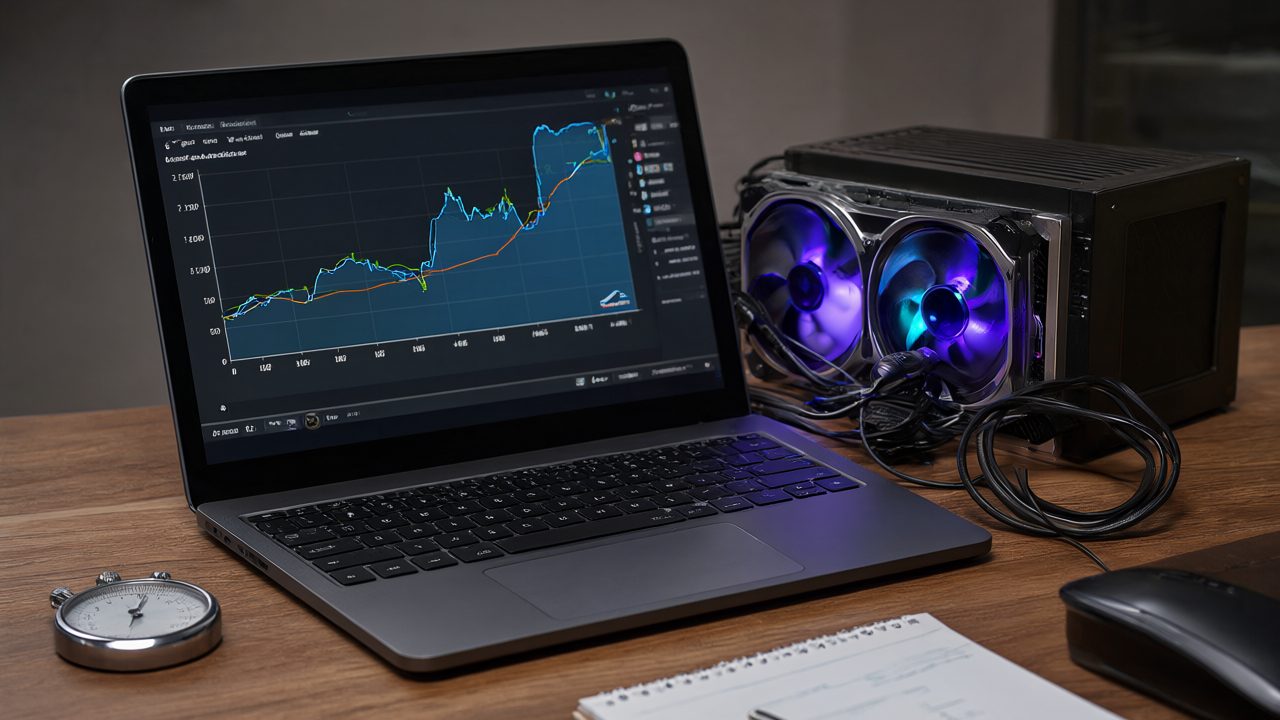
Step 6. Check Whether the Program Uses an NPU
As of October 2026, Ollama and LM Studio do not use an NPU. You can verify this via a resource monitor:
- Windows: "Task Manager" → "Performance" → "NPU". While Ollama is running, NPU load will remain at zero.
- macOS: "Activity Monitor" → "CPU" → "Neural Engine" column (may be absent in some versions).
If the NPU is not loaded, this is normal. Tools for local models are still oriented toward GPU and CPU.
Common Errors and How to Recognize Them
Error: "model requires more system memory"
The model does not fit in RAM. Solution: choose a model with fewer parameters or close unnecessary programs.
Error: "CUDA error: out of memory"
There is not enough video memory. Reduce the model size or run on CPU (variable OLLAMA_NO_GPU=1).
Ollama is not found in the terminal
After installation on Windows or macOS, restart the terminal. On Linux, check that /usr/local/bin is in PATH.
The model responds very slowly
Most likely, it is running on CPU without GPU acceleration. Check whether your graphics card is supported. The list of supported GPUs is in the Ollama documentation.
The NPU is not loaded
This is not an error. As of October 2026, Ollama and LM Studio do not use an NPU. If you expected acceleration from the neural processor, there will not be any.
Not enough disk space
Models take up a lot of space. Delete unused ones with the command ollama rm model_name.
In the End
An NPU in a laptop is useful for background AI functions of Windows and macOS, video calls, and speech recognition. To run large language models via Ollama or LM Studio, it is not needed. The amount and bandwidth of memory are more important. If you are choosing a laptop for local neural networks, look at these parameters, not at TOPS in the specifications.
There is no data in the provided fragment about which specific chips with an NPU were released in 2026 and what the NPU versus GPU and CPU test showed. Check the full version of the "Kod" material dated 10/30/2026.